How to Install a Travel eSIM on Android
Exact steps for Samsung Galaxy and Google Pixel, the one setting most people miss, and how to check you're online the moment you land.

Installing a travel eSIM on Android takes about five minutes. The menus differ slightly between brands, so below are exact steps for Samsung Galaxy and Google Pixel. On other Android phones, look for the same options under Settings › Network or Connections.
Before you start
- Check eSIM support. Most recent Galaxy S, Z Fold/Flip and Pixel phones support eSIM, but some regional versions don't. Go to Settings and search for "eSIM". If "Add eSIM" appears, you're good.
- Make sure the phone is unlocked if you bought it from a carrier.
- Connect to Wi-Fi. The eSIM downloads over the internet.
- Check the activation rule for the package you purchased. Validity may start at installation or at the first connection to a supported network. Follow that package’s instructions; do not assume every plan uses the same trigger. Install when you are ready for the validity period to begin, on reliable Wi-Fi. The day you fly, before boarding or after landing, is a practical choice once you have checked your package’s activation rule.
Option 1: One-tap install (Android 10 and later)
- On the phone, open My eSIMs on VenterraSIM and tap Install on Android, or tap the Android (10.0+) quick-install button in your confirmation email.
- Confirm the prompts, then skip to "Set up the eSIM" below.
Option 2: Scan the QR code
You'll need the QR code on a second screen, like a laptop or another phone.
Samsung Galaxy
- Go to Settings › Connections › SIM manager.
- Tap Add eSIM › Scan QR code.
- Scan the code and tap Confirm.
Google Pixel
- Go to Settings › Network & internet › SIMs.
- Tap Add SIM (or +) › Download a SIM instead? › Next.
- Scan the code and tap Download or Activate.
Can't scan? Choose Enter activation code (Samsung) or Need help? › Enter it manually (Pixel), then type the details from the Manual Install tab of your order.
Set up the eSIM
- Name your lines. Call the new one "Travel" and your usual SIM "Primary".
- Calls and SMS: keep Primary.
- Mobile data: choose Travel.
- Turn on roaming for Travel. This step is important, because the eSIM connects through partner networks abroad. It costs nothing extra, since the data is prepaid.
- Samsung: Settings › Connections › Mobile networks › Data roaming
- Pixel: Settings › Network & internet › SIMs › Travel › Roaming
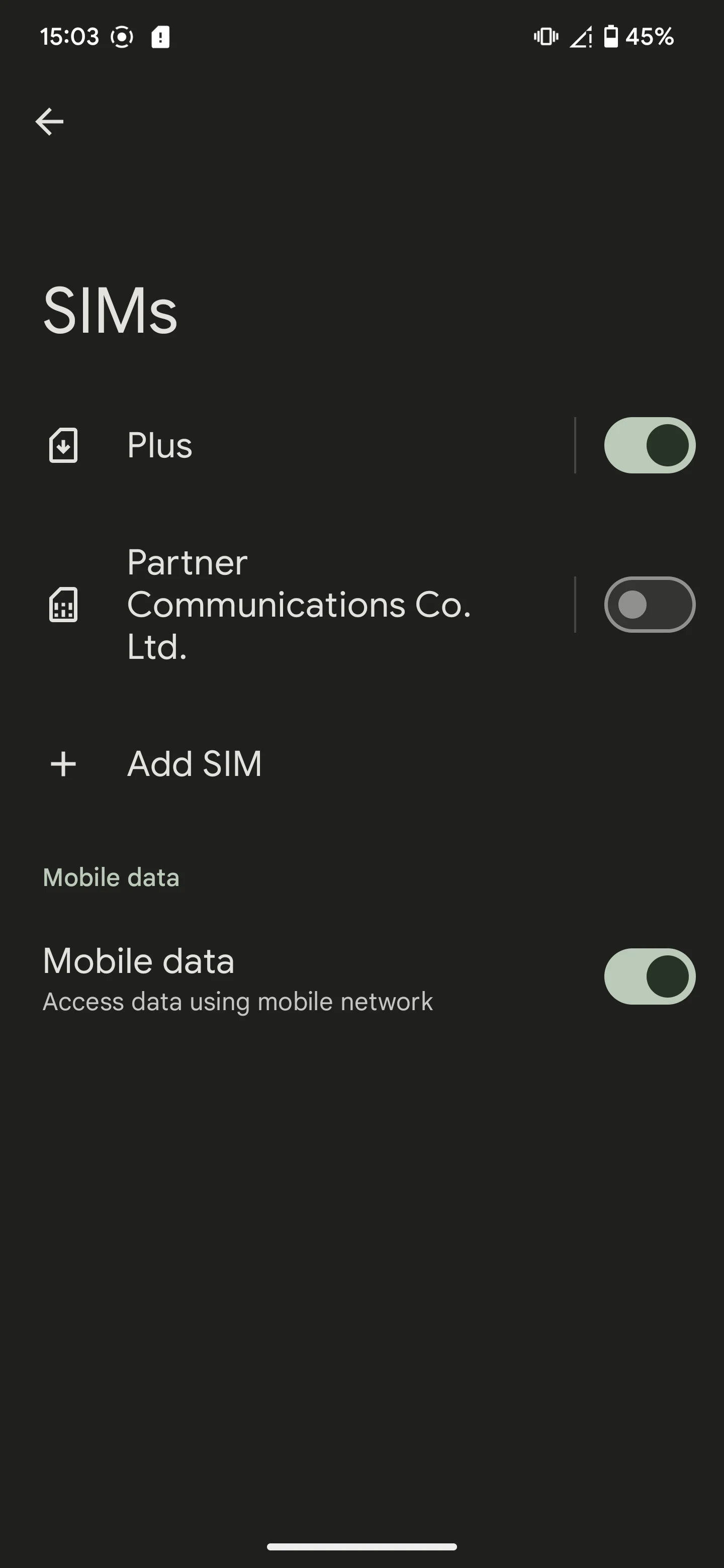
Pixel example: the travel eSIM is on, the home line is off, and mobile data is enabled. Samsung menus look different.
When you land
- Turn off your Primary SIM in SIM manager (Samsung) or SIMs (Pixel). That way your home carrier can't charge you. (Need calls or texts on your number? Leave it on, but keep its roaming off.)
- Turn off automatic data switching, so the phone never borrows data from your home SIM:
- Samsung: SIM manager › Auto data switching off
- Pixel: SIMs › Travel › Switch mobile data automatically off
- Test it: turn Wi-Fi off and open any website. If it loads, you're online.
Not connecting?
Check these first:
- Roaming is on for the Travel SIM
- Travel is selected for mobile data
- Airplane mode is off
- You're in a country your package covers
Still nothing? Restart the phone, or turn Airplane mode on and off. Don't delete the eSIM. It usually can't be reinstalled. The troubleshooting guide has more fixes, and our support team is one message away in the chat.
Heading home
Switch mobile data back to Primary and turn your Primary SIM on again. You can keep the Travel eSIM on the phone, switched off.
Prefer pictures? See our illustrated guides for Samsung Galaxy and Google Pixel.